
The first time QuickBooks Online refused one of my CSV files, I changed the wrong thing for most of an afternoon. The file looked perfect in Excel: four neat columns, dates down the left, amounts on the right. QuickBooks still said it couldn't read it.
The problem turned out to be two lines of text above the header row, the account name and statement period that the bank puts at the top of every export. Excel showed them as harmless rows. QuickBooks treated the first of them as the header and gave up.
Since then I've built a converter that turns PDF bank statements into CSV and QBO files, and I've pushed a lot of real statements from a lot of banks through it. The same handful of problems cause almost every failed import. This post is the list I wish I'd had that first afternoon, in the order I now check them.
The short answer
QuickBooks Online accepts a bank CSV in only two layouts:
- 3 columns: Date, Description, Amount. Money in is positive and money out is negative.
- 4 columns: Date, Description, and two amount columns, one for money in and one for money out.
Row 1 must be the column names, and every row below it must be a transaction. Dates must use one format all the way down, and amounts must be plain numbers. If your file breaks any of those rules, the import fails or, worse, goes through with the wrong numbers.
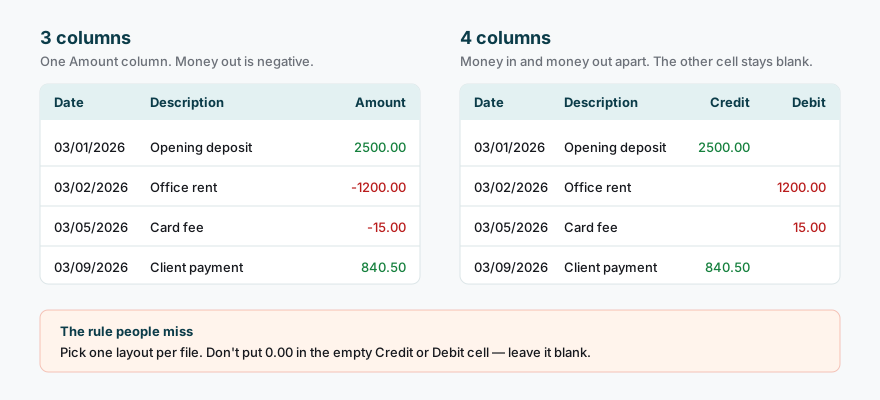
You can download both layouts and open them next to your own file:
The column names don't matter much, because you tell QuickBooks which column is which on the mapping screen. The shape is what matters.
Check in this order
When a file fails, I don't guess. I go through the same five checks, top to bottom. Most files are fixed by step 3.
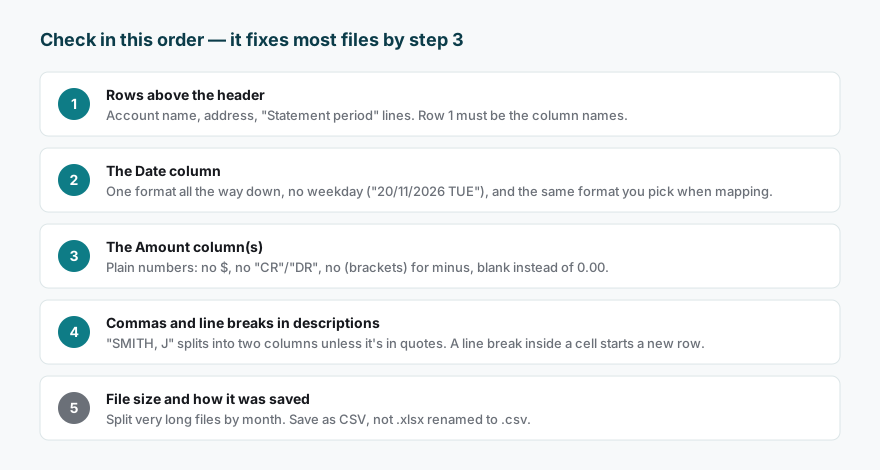
One habit makes all of this easier: open the CSV in a plain text editor, not just Excel. Use Notepad on Windows or TextEdit on a Mac (set to plain text). Excel tidies things up on screen and hides exactly the problems you're looking for. A text editor shows you what QuickBooks sees.
1. Rows above the header
Bank exports love a preamble:
Account: Business Checking ****4821
Statement period: 03/01/2026 - 03/31/2026

Date,Description,Amount
03/01/2026,Opening deposit,2500.00
QuickBooks reads the first line as your headers, finds one column called "Account: Business Checking ****4821", and the mapping screen makes no sense.
Fix: delete everything above the real header row, including blank lines. Do the same at the bottom of the file, where some banks add a "Closing balance" or "End of statement" line.
2. The date column
Dates cause more failed imports than anything else, for three reasons.
Mixed formats. If even one row says 2026-03-01 while the rest say 03/01/2026, QuickBooks can reject the whole file. This happens a lot when someone has typed a missing transaction in by hand.
Extra text in the cell. Some banks write 20/11/2026 TUE or 01 Mar 2026 (value date 02 Mar). QuickBooks only wants the date itself.
The wrong order chosen on the mapping screen. QuickBooks asks you to pick the date format, such as MM/dd/yyyy or dd/MM/yyyy. If you pick the wrong one, a file of dates up to the 12th of each month imports without an error, with every day and month swapped. You only find out when March's rent lands in January. This one is nasty because nothing warns you.
Fix: sort the file by date and look at the first and last rows. Then scroll looking for anything that doesn't line up. If your bank is outside the US, assume dd/MM/yyyy until you've proved otherwise, and check one transaction with a day above 12 after the import.
Watch out for Excel. If you open a CSV in Excel and save it again, Excel rewrites the dates into your computer's regional format. A file that was
03/01/2026can come back as1/3/2026. If you have to edit in Excel, check the dates in a text editor before you upload.
3. The amount column(s)
QuickBooks wants a plain number. Here's what I see in real exports and what each should become:
| In the bank's file | What QuickBooks needs (3-column) |
|---|---|
$1,200.00 |
-1200.00 (if it's money out) |
1,200.00 DR |
-1200.00 |
(1,200.00) |
-1200.00 |
1.200,00 (European style) |
-1200.00 |
0.00 in an empty cell (4-column) |
leave the cell blank |
The last row trips up a lot of people. In a 4-column file, a transaction has money in or money out, not both. If the empty side says 0.00, QuickBooks can read it as a second, zero-value amount and reject the row. Leave it blank.
Also check the sign in a 3-column file. Some banks export money out as a positive number in a column called "Withdrawals". If you rename that column to "Amount" without flipping the sign, every payment imports as a deposit. Your balance goes the wrong way and the reconciliation won't close.
A quick sanity check I always do: add up the amount column and compare it with the statement. Opening balance plus the total should equal the closing balance. If it doesn't, the import will be wrong even if QuickBooks accepts the file.
4. Commas and line breaks inside descriptions
A CSV uses commas to split columns. So a description like this:
03/09/2026,Client payment - SMITH, J,840.50
becomes four columns, and the amount ends up in the wrong place. The fix is quotes around any cell that contains a comma:
03/09/2026,"Client payment - SMITH, J",840.50
Line breaks are the same problem in disguise. Some banks put the payee on one line and the reference underneath, inside a single cell. Excel shows one tidy row. QuickBooks sees a new row that starts with a reference number instead of a date.
Fix: in Excel, use Find & Replace on the description column to replace line breaks (press Ctrl+J in the Find box) with a space. Then save as CSV again.
5. File size and how the file was saved
Two last things to check:
- Very long files. Big exports, such as a year of a busy account, can be refused or time out. Split the file by month or quarter and upload the pieces in date order.
- The wrong file type. Renaming an
.xlsxfile to.csvdoesn't make it a CSV. Use File → Save As → CSV (comma delimited) or CSV UTF-8.
When it imports but the numbers are wrong
A file that uploads is not the same as a file that's right. After every import, I check three things before I touch a single transaction in For review:
- The count. Does the number of transactions match the statement? Missing rows usually mean a page didn't convert or a line break split a row.
- The first and last dates. Did they land in the right month? If not, the day and month are swapped (see step 2).
- The balance. Opening balance plus the imported transactions should equal the statement's closing balance.
If any of these is off, it's much easier to delete the batch and re-upload a fixed file than to correct transactions one by one. If you've already matched or categorised some of them, see our guide to reconciling a bank statement before you undo anything.
What about QuickBooks Desktop?
Everything above is about QuickBooks Online. QuickBooks Desktop doesn't take a bank CSV through the bank feed in the same way. It wants a .QBO (Web Connect) file instead. If you're on Desktop, follow our step-by-step guide to importing a bank statement into QuickBooks Desktop.
If your bank only gives you a PDF
A lot of the mess above comes from trying to turn a PDF statement into a CSV by copy-paste. If that's where your file came from, you'll save time by converting it properly in the first place. Our PDF to CSV guide covers the options.
If you already have a CSV and just want to know whether it'll go in cleanly, our free bank CSV checker runs these checks in your browser. It flags duplicate rows, unreadable dates and amounts, and gaps before you upload. I built it after making every one of these mistakes myself.
FAQ
Why does QuickBooks say it can't find my columns when they're clearly there?
Almost always there's a row above the header, or the file is actually an Excel file renamed to .csv. Open it in a text editor: the first line should be your column names.
Can I import a CSV with a running balance column? Yes. Just don't map the balance column to anything on the mapping screen. QuickBooks only needs the date, the description and the amount(s).
My import went through, but every transaction is a deposit. Why? Your money-out amounts are positive in a 3-column file. Make them negative, or switch to the 4-column layout and map the two columns separately.
QuickBooks only downloaded 90 days from my bank feed. Can I use a CSV for older months? Yes, that's one of the most common reasons to import a CSV. Make sure the dates don't overlap with what the bank feed already brought in, or you'll get duplicates.
Should I use CSV or QBO for QuickBooks Online? Both work in QuickBooks Online. A QBO file carries a unique ID for each transaction, which helps QuickBooks spot duplicates if you upload the same period twice. CSV is easier to open and fix by hand. If your file keeps failing, a QBO file sidesteps most of the formatting problems in this post.