It always happens at the worst time. Someone wants their books caught up for the year, you connect the bank feed, and QuickBooks brings in three months. The other nine are still sitting in the bank's website as PDF statements.
The first time I did a catch-up like this, the importing wasn't the hard part. The hard part was the mess afterwards: transactions in For review twice, an opening balance that was off by thousands, and a reconciliation that would never close. None of that was the software's fault. I'd skipped the planning.
This is the process I use now. It works the same in QuickBooks Online, Xero and Quicken, and it takes most of the risk out of a big history import.
The short answer
- Pick one cutoff date. The bank feed covers everything from that date on. Converted statements cover everything before it. Nothing goes on both sides.
- Get every statement for the older months from your bank, as PDF if that's all they keep.
- Check the balance chain before you import anything: each statement's closing balance should be the next one's opening balance.
- Convert and upload the statements one month at a time, oldest first.
- Fix the opening balance so it's the balance on the day before your first imported transaction.
- Reconcile each month before you move on to the next one.
The rest of this post goes through each step and the traps in it.
Why the feed stops at 90 days
Bank feeds aren't a copy of your bank account. They're a connection that pulls recent transactions, and most banks only hand over a limited window when you first connect. In QuickBooks Online that's usually around 90 days. Some banks let you choose a longer range on the connection screen, so it's worth checking that before you do anything else.
Once you're past that window, the feed won't go back further, however many times you disconnect and reconnect. Reconnecting is actually how a lot of duplicates start, so don't use it to try to get more history.
For older months, the answer is always the same: get the statements from the bank and import them yourself.
Step 1: pick one cutoff date
This is the step everything else depends on, and the one most people skip.
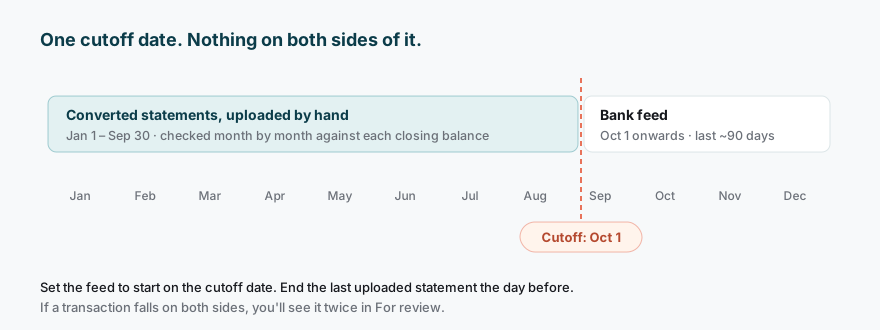
Choose a date, ideally the first day of a month, and decide that:
- The bank feed brings in everything on or after that date.
- Your uploaded statements cover everything before that date, and end on the day before it.
The first day of a statement month makes the rest much easier, because your last uploaded statement ends cleanly on the day before.
If the feed is already connected and has brought in transactions from, say, mid-August, either set your cutoff to a full month after that (October 1 in the diagram) and exclude the feed's earlier transactions, or upload statements only up to the day before the feed's first transaction. Either works. Mixing the two is what creates duplicates.
Step 2: get every older statement
Log in to your bank's website and look for Statements or Documents, not Transactions. Many banks only let you download transaction CSV files for a recent period, but keep the monthly PDF statements for years.
A few practical tips:
- Download every month, even quiet ones. A month with two transactions still has an opening and closing balance you'll need for the chain check.
- Rename the files as you go, for example
2026-03 Business Checking.pdf. Bank file names are usually a jumble of numbers, and you'll be glad of the order later. - If a statement isn't online, the bank can usually send it, but it can take days. Ask now, not when you're halfway through.
Step 3: check the balance chain before importing
Before converting a single file, line the statements up in order and compare each month's closing balance with the next month's opening balance.
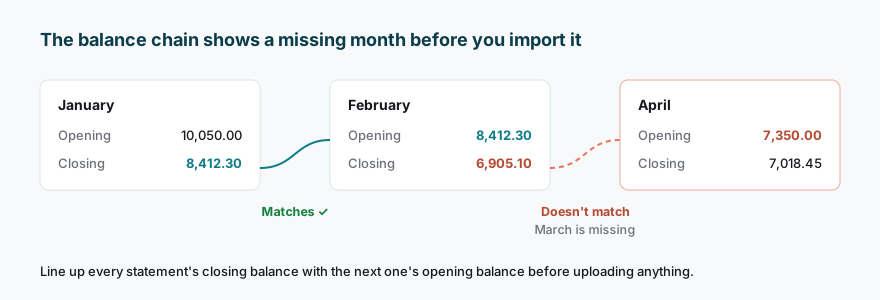
If they match all the way down, you have a complete set. If one doesn't, you have a gap: a missing month, a missing page, or a statement for a different account that got mixed in. It's far easier to find that now than after 600 transactions are in your books.
I keep track in a simple log. You can download the statement log template and fill it in as you go. It has columns for each month's balances, the transaction count on the statement, the count you imported, and whether the balance in your books matches.
If you have a lot of PDFs, our free missing bank statement checker does this chain check for you. Drop in the whole batch and it shows missing months and pages, overlaps, and where balances don't carry over.
Step 4: convert and upload one month at a time
Convert each PDF to the format your software takes best:
| Software | Best file for older months | Where to upload |
|---|---|---|
| QuickBooks Online | QBO or CSV | Banking → Upload transactions (link on the bank account) |
| QuickBooks Desktop | QBO (Web Connect) | File → Utilities → Import → Web Connect Files |
| Xero | OFX, QBO or CSV | The bank account → Manage account → Import a statement |
| Quicken | QFX | File → File Import → Web Connect (.QFX) File |
Then upload them oldest first, one month per file. It feels slower than one giant file. It isn't, because when something goes wrong you know exactly which month it's in, and you can delete one small batch instead of everything.
After each upload, check three numbers against your log before you go on:
- The transaction count matches the statement.
- The first and last dates are in the right month. If dates show up in the wrong month, the day and month have probably been swapped on import. Our post on QuickBooks CSV import errors explains how that happens.
- The balance in your books at the end of the month matches the statement's closing balance.
For step-by-step screens, see our guides for QuickBooks Online, QuickBooks Desktop, Xero and Quicken.
Step 5: fix the opening balance
This is the trap that catches almost everyone.
When you first connect a bank feed, QuickBooks Online often creates an "Opening Balance from Bank" entry dated at the start of the feed. That's right while the feed is all you have. Once you add older months, it's wrong: it's now sitting in the middle of your history and double-counting money that your imported statements already explain.
The opening balance you want is the balance on the day before your first imported transaction, which is the opening balance on your oldest statement.
- If the account had no transactions before your oldest statement, put that figure in as the opening balance, dated the day before.
- If QuickBooks created an "Opening Balance from Bank" entry for the feed's start date, edit it to the correct date and amount, or delete it and enter the correct one.
- If earlier periods have already been reconciled, talk to whoever did that before you change anything. Changing an opening balance under a reconciled period will throw those reports out.
Your check: once everything is in, the balance in your books on any month end should equal that month's statement closing balance.
Step 6: reconcile month by month
Don't wait until the whole year is in. Reconcile January before you upload February. A difference you find in January is a few transactions to look through. The same difference found in December is a whole year.
Our bank reconciliation checklist has the full routine, including what to look at when the difference won't go to zero.
What I'd do differently next time
- Set the cutoff date before connecting the feed, not after. It saves a round of excluding transactions.
- Fill the log as I go, not at the end. The moment a count doesn't match is the moment to stop.
- Never reconnect a feed to "get more history". It doesn't work, and it's the most reliable way I know to create duplicates.
FAQ
Can I get QuickBooks Online to download more than 90 days from the bank feed? Sometimes. A few banks offer a longer range on the connection screen. If yours doesn't, the only way to get older months is to import them from statements.
My bank only gives me PDFs for older months. Can I import a PDF directly? No. QuickBooks, Xero and Quicken don't read PDF statements. Convert each one to CSV, QBO, OFX or QFX first. Our guide to converting a PDF bank statement to CSV covers the options, including scanned statements.
I imported old statements and now have duplicates. What happened? The statement period overlaps with what the feed brought in. Find the overlap dates, then exclude the duplicates in For review. If they were already accepted, undo or delete the copies, not the originals that have been matched or reconciled.
Should I upload the whole year as one file? You can, but I wouldn't. One month per file means one month to fix when something goes wrong, and very large files are more likely to be refused.
Does this work for credit card accounts too? Yes, the same steps apply. Just remember that a credit card balance is money you owe, so check that charges and payments go the right way after the first upload.