You open your books and the balance looks too low. You scroll down and there it is. The rent was paid twice. So was the phone bill. And the coffee shop.
Of course, you didn't pay twice. The bank shows each payment once. Your software just brought them in twice.
I've cleaned up this mess more times than I'd like. The good news is that it's usually easy to fix. The bad news is that the quick fix, deleting the copies you see, can make things worse.
This post shows you how to fix it the safe way.
The short answer
- Duplicates almost always come from two sources covering the same dates. That's usually the bank feed plus a file you uploaded.
- Find the overlap dates first. Don't start deleting one by one.
- Keep the copy that's already matched or reconciled. Remove the one that's still waiting for review.
- In QuickBooks Online, use Exclude, not Delete, for anything still in For review.
Where duplicates come from
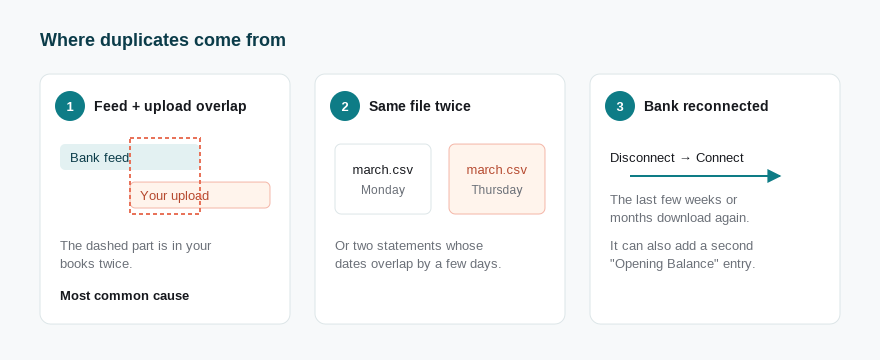
There are three common causes. Knowing which one you have tells you where to look.
1. The bank feed and an upload overlap
This is the most common one by far.
Say the bank feed brings in transactions from August 15. Then you upload a statement for all of August. Now August 15 to 31 is in your books twice.
It happens a lot when you add older months to a new account. Our guide on importing transactions older than 90 days shows how to avoid it with one cutoff date.
2. The same file was uploaded twice
Maybe the first upload looked like it failed, so you tried again. Maybe two people on the team uploaded the same month.
It also happens with statements that overlap. Some banks print a statement from March 1 to March 31, and the next one from March 29 to April 30. Upload both and you have three days twice.
3. The bank account was reconnected
When you disconnect a bank feed and connect it again, the software often downloads recent transactions again. It doesn't always know it already has them.
In QuickBooks Online this can also create a second "Opening Balance from Bank" entry. Check for that too.
Step 1: find the overlap dates
Don't start by deleting. Start by finding out which dates are affected.
Here's the quickest way I know:
- Open the bank account register, or the list of bank transactions.
- Sort by date.
- Look for the first day where the same payments appear twice. Then look for the last day.
That date range is your problem area. Everything outside it is fine, so you can stop worrying about it.
If you have the statements as PDFs, our free missing bank statement checker also shows where two statements overlap. That's often the answer in seconds.
Step 2: make sure it's really a duplicate
Not every pair of matching payments is a mistake.
Some real payments look exactly the same. Two $4.50 coffees on the same day. Two $50 transfers to savings. A monthly fee and a refund of last month's fee.
Before you remove anything, check the bank statement for that day. If the statement shows the payment twice, it's real. Keep both.
A simple rule: your books should show each payment exactly as many times as the bank statement does.
Step 3: decide which copy to remove
This is the step people get wrong.
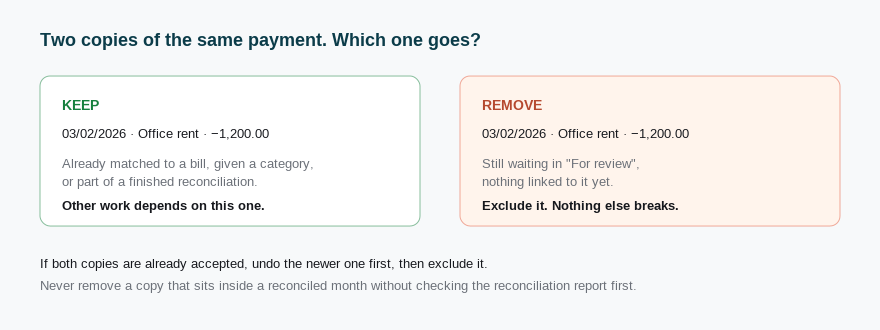
One copy is often already "used". It may be matched to an invoice or a bill, given a category, or part of a finished reconciliation.
The other copy is usually still waiting in For review, with nothing linked to it.
Keep the used one. Remove the waiting one. If you remove the used one, you also break the match, the category or the reconciliation it belongs to.
Step 4: remove the duplicates
How you do this depends on your software.
QuickBooks Online
If the duplicate is still in For review:
- Go to Transactions → Bank transactions.
- Pick the bank account.
- Tick the duplicates.
- Click Exclude.
Excluded transactions don't touch your books. You can find them later in the Excluded tab and bring them back if you made a mistake.
If the duplicate was already accepted:
- Find it in the Categorized (or Reviewed) tab.
- Click Undo. It goes back to For review.
- Now exclude it as above.
Only delete a transaction from the register if it was typed in by hand and never came from the bank.
Xero
In Xero, uploaded statements are kept as separate imports. If you uploaded the same file twice, open the bank account, go to the list of imported bank statements, and delete the second import. That removes all its lines in one go.
If only a few lines are doubled, you can delete those statement lines one by one from the same place, as long as they aren't reconciled yet.
Quicken
Quicken usually spots duplicates for you. It uses a hidden ID on each transaction, called a FITID.
That cuts both ways. If your bank gives two different transactions the same ID, Quicken thinks the second one is a duplicate and quietly skips it. Then you end up with a missing transaction, not an extra one. Our free duplicate FITID fixer sorts that out.
For real duplicates in Quicken, select them in the register and delete them. Check the balance against your statement afterwards.
Step 5: check the balance
When you're done, compare your books with the bank statement.
Pick the last day of the affected month. The balance in your books should match the closing balance on the statement, to the cent.
If it does, you're finished. If it doesn't, the difference usually tells you what's left. If you're off by exactly one payment, look for that amount first.
A note on reconciled months
Be careful if the duplicates are inside a month that's already reconciled.
Removing a transaction from a reconciled month changes a report that someone may already have used, maybe for a tax return. Before you change anything there, check the reconciliation report. If someone else did the reconciliation, ask them first.
Our bank reconciliation checklist has more on this.
How to stop duplicates from coming back
These four habits have saved me a lot of clean-up time:
- Pick one source for each date. The feed covers from a set date onwards. Uploads cover before it. Never both.
- Write down what you upload. Note the file name and its date range. A simple list is enough.
- Don't reconnect a bank feed to "fix" something. It rarely fixes the problem and often creates duplicates.
- Check your file before you upload it. Our free bank CSV checker flags duplicate rows inside a file before it goes in.
FAQ
Will QuickBooks catch duplicates for me? Sometimes. It tries to match new bank transactions to ones you already have, and suggests a match. But it doesn't always spot them, especially with CSV uploads. Always check the dates you upload.
Is it safe to delete duplicates? For anything still in For review, use Exclude, not Delete. It's safer because you can undo it. Only delete transactions you typed in by hand.
I removed the duplicates but my balance is still wrong. Why? Check for a second "Opening Balance from Bank" entry. It often comes with a reconnected bank feed. Also check that you removed duplicates, not real payments that look the same.
Two payments look the same. How do I know if one is a duplicate? Look at the bank statement for that day. If the bank shows it twice, both are real.
Does this happen with credit cards too? Yes. The causes and the fix are the same.